iPhone Won’t Turn On? Try These Fixes First
iPhone Troubleshooting
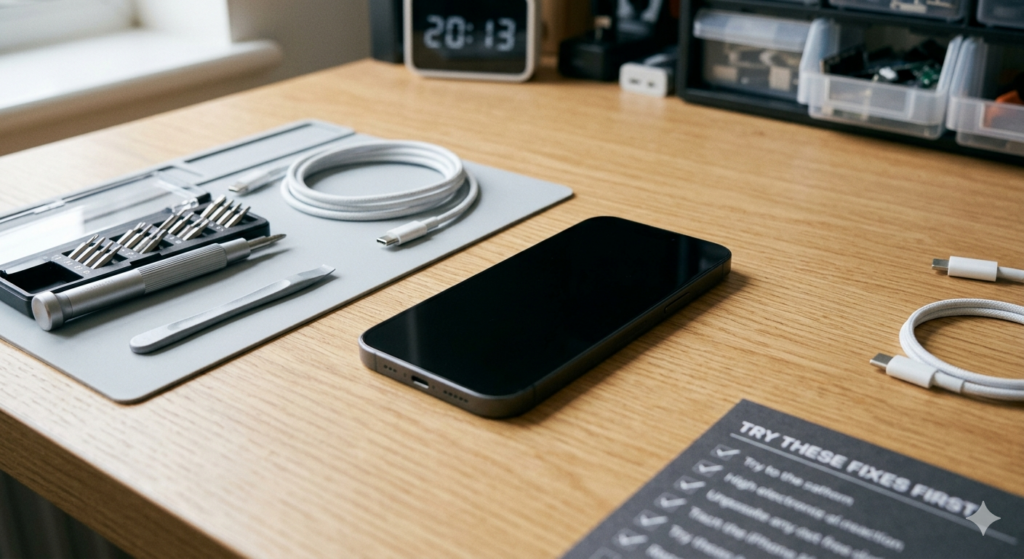
iPhone Won't Turn On? Try These Fixes First
Before you panic — most black screen issues are fixable in under 5 minutes without any tools.
A black screen does not always mean a dead phone. In most cases, the iPhone is fine — it just needs a specific restart sequence or a charge. Work through these steps in order before concluding something is seriously wrong.
Step 1: Force Restart Your iPhone
This is the fix that works in the majority of cases. A force restart clears the phone's memory and reloads the operating system — it does not erase any data.
iPhone 8, X, 11, 12, 13, 14, 15, 16 (Face ID models)
1
Press and quickly release the Volume Up button
A quick tap — do not hold it.
2
Press and quickly release the Volume Down button
Again, a quick tap.
3
Press and hold the Side button
Keep holding until the Apple logo appears — usually 10–15 seconds. Ignore the "slide to power off" screen if it appears; keep holding.
iPhone 7 / 7 Plus
Hold the Volume Down button and the Side button simultaneously for 10 seconds until the Apple logo appears.
iPhone 6s and older (with Home button)
Hold the Home button and the Top/Side button simultaneously for 10 seconds until the Apple logo appears.
💡 Did the Apple logo appear?
If you saw the Apple logo, your phone is rebooting and should be fine. Give it 60 seconds to fully load. If it boots to a black screen again after the logo, skip to Step 4.
Step 2: Charge the Battery
If the force restart does nothing — no vibration, no logo, nothing — the battery may be completely flat. A deeply discharged iPhone sometimes will not respond for several minutes after plugging in.
- Use the original Apple cable and charger if possible, or a certified MFi cable
- Plug in and leave it for at least 15–20 minutes before trying anything
- Look for the low-battery screen (red battery icon) — if you see it, you just need more charge time
- Try a different cable and plug — charging accessories fail more often than phones do
- Try a different power outlet or USB port
⚠️ Check the Charging Port
Bangkok's humidity means lint and debris pack into Lightning and USB-C ports quickly. Use a toothpick to gently clear the port — compacted lint prevents a solid connection and is one of the most common causes of "not charging" issues. Do this carefully and with the phone powered off.
Step 3: Connect to iTunes / Finder (Recovery Mode)
If the phone is not responding to a force restart and will not charge, try putting it into Recovery Mode. This connects the phone to a computer even when it cannot boot normally.
1
Connect your iPhone to a Mac or PC
Open Finder (Mac) or iTunes (Windows). Make sure you have the latest version.
2
Put the iPhone into Recovery Mode
Follow the same button sequence as the force restart for your model — but keep holding the Side button even after the Apple logo appears, until you see the Recovery Mode screen (cable and computer icon).
3
Choose "Update" in Finder/iTunes
Select Update (not Restore) first — this reinstalls iOS without erasing your data. A Restore wipes the phone and should only be used as a last resort.
Technician's Note
Recovery Mode works even on phones with a broken screen — as long as the logic board is functional. If iTunes/Finder recognises the device in Recovery Mode, the hardware is likely intact and the issue is software-based.
What the Symptoms Tell You
If none of the above steps work, the symptoms can help identify what's actually wrong before you bring the phone in.
| What You See / Hear | Likely Cause | Severity |
|---|---|---|
| Phone vibrates but screen stays black | Screen failure or display connector issue | Moderate |
| Apple logo appears then disappears in a loop | iOS corruption or storage failure | Moderate |
| No response at all — no vibration, no heat | Dead battery, charging port fault, or logic board issue | Moderate–Serious |
| Gets warm but nothing shows | Logic board is running but screen is disconnected or failed | Moderate |
| Dropped recently before this happened | Internal connector dislodged or screen cracked internally | Moderate |
| Got wet before this happened | Water damage — corrosion on logic board | Serious — Act Fast |
| Computer recognises it in Recovery Mode | Software / iOS issue — hardware likely fine | Recoverable |
When to Bring It In
Bring your iPhone to a professional repair shop if:
- Force restart does nothing — no vibration, no response
- The Apple logo loops repeatedly and the phone never fully boots
- The phone was dropped or got wet before the issue started
- Recovery Mode does not show the phone in iTunes/Finder
- The phone gets warm but the screen stays black
💡 Before You Come In
If your phone has iCloud Activation Lock enabled, make sure you have your Apple ID and password ready. Some repairs require the device to be unlocked, and without your credentials we may not be able to complete testing.
Frequently Asked Questions
Will I lose my data if the phone is repaired?
In most cases, no. Screen replacements, charging port repairs, and battery replacements do not affect your data. Logic board repairs carry more risk depending on the fault. We always advise backing up via iCloud before any repair if the phone will power on at all.
How long does diagnosis take?
Our free diagnostic takes 15–30 minutes. We open the device, inspect the components, and give you a clear quote before any repair begins.
My phone got wet — should I put it in rice?
No. Rice does nothing useful and fine starch particles can enter ports and connectors. Power the phone off immediately, do not attempt to charge it, and bring it in as soon as possible. The faster we clean it, the better the outcome.
Is it worth repairing an older iPhone that won't turn on?
Usually yes — especially if the fault is a screen, battery, or charging port. These are straightforward repairs on any model. Logic board issues on very old phones (iPhone 8 and below) may not be economically worthwhile. We will tell you honestly after the diagnostic.
iPhone won't turn on? Come in today.
Free diagnostic — we'll find the problem and quote you before touching anything. No fix, no charge.
Get a Free Diagnostic Walk-ins welcome · Chit Lom, Bangkok · (+66) 922 540 866